
Introduction
Linux is more than just an operating system; it represents a powerful and flexible platform that caters to a wide range of users from casual home users to enterprise-level professionals. With its open-source nature, Linux provides unparalleled freedom and customization options. This comprehensive guide delves into the various aspects of Linux, exploring its history, distributions, command line interface, and much more. Whether you’re a beginner looking to dip your toes into the world of Linux or a seasoned user aiming to enhance your skills, this guide will equip you with everything you need to know about Linux.
History of Linux
Origin and Development
The journey of Linux began in 1991 when Linus Torvalds released the first version of the Linux kernel. Inspired by the MINIX operating system, Torvalds aimed to create a free and open-source alternative. Over the years, Linux has evolved significantly due to contributions from developers worldwide. This collaborative effort has led to the creation of a robust ecosystem where anyone can contribute, modify, and distribute their own versions of the software.
Key Milestones
- 1991: Initial release of the Linux kernel.
- 1994: Linux 1.0 is released, marking the first stable version.
- 2003: The introduction of the Linux Foundation.
- 2011: The Linux kernel surpasses 1 billion lines of code, reflecting its maturity and complexity.
- 2020: Linux is used in over 90% of the world’s top supercomputers, demonstrating its power in high-performance computing.
Impact on Technology
Linux has profoundly impacted various sectors, including:
- Server management and hosting: Many web servers run on Linux due to its stability, security, and performance. Major companies like Google and Facebook rely on it for their infrastructure.
- Embedded systems and IoT devices: The lightweight nature of Linux makes it ideal for embedded systems found in everything from smart appliances to automotive systems.
- Supercomputing and high-performance computing: Linux dominates the supercomputing landscape, with its ability to scale efficiently across thousands of nodes.
- Mobile technology: Android, one of the most popular mobile operating systems globally, is built on the Linux kernel.
Popular Linux Distributions
Overview of Distributions
Various Linux distributions (distros) cater to different user needs. Here are some of the most popular:
| Distribution | Target Users | Key Features |
|---|---|---|
| Ubuntu | Beginners | User-friendly, extensive community support, regular updates. |
| Fedora | Developers | Cutting-edge features, strong support for developers, frequent updates. |
| Debian | Advanced users | Stability, extensive package library, robust security policies. |
| Arch Linux | Advanced users | Rolling release model, highly customizable, minimalistic approach. |
| CentOS | Enterprise users | Stable and secure, designed for enterprise environments. |
Choosing the Right Distribution
When selecting a Linux distribution, consider the following:
- Your level of expertise: Beginners may prefer user-friendly distributions like Ubuntu or Mint, while experienced users might enjoy the flexibility of Arch or Gentoo.
- The purpose of use: Determine whether you need a desktop environment for daily tasks, a server setup for hosting applications, or a lightweight version for older hardware.
- Community support and documentation availability: Check if there are active forums, tutorials, and documentation available to assist you in your journey.
- Package management preferences: Some users may prefer distributions with specific package managers (like APT for Debian-based distros or DNF for Fedora) based on ease of use and available software.
Linux Command Line Basics
Understanding the Terminal
The terminal is a powerful tool that allows users to interact with the Linux operating system using commands. It is essential for performing tasks efficiently. While graphical interfaces can accomplish many tasks, mastering the command line can greatly enhance your productivity and give you finer control over system operations.
Basic Commands
- ls: Lists files and directories in the current directory. You can use options like
-lfor detailed output or-ato show hidden files. - cd: Changes the current directory. Use
cd ..to move up one level in the directory structure. - cp: Copies files and directories. Use
cp -r source_directory target_directoryto copy directories recursively. - mv: Moves or renames files and directories. Use
mv old_name new_nameto rename. - rm: Deletes files or directories. Be cautious with this command, especially when using
-r, as it will remove directories and their contents permanently. - man: Displays the manual pages for commands. For example,
man lsprovides documentation about thelscommand.
File System Hierarchy
The Linux file system follows a hierarchical structure that organizes files and directories efficiently. Key directories include:
- /home: User home directories where personal files are stored. Each user has a subdirectory under /home named after their username.
- /etc: Contains configuration files for the system and applications. This is where you can modify settings for your system’s behavior.
- /var: Holds variable data such as logs, databases, and spool files. This directory grows as applications write data to it.
- /usr: Contains user-related programs and data. This includes applications installed by users as well as libraries and documentation.
- /bin: Holds essential binary executables required for basic system operations. Common commands like
ls,cp, andmvare found here. - /lib: Contains shared libraries needed by executable programs found in /bin and /usr/bin.
Linux Software Management
Package Management Systems
Linux distributions use package managers to install, update, and remove software efficiently. Package managers automate the process of managing software packages and dependencies. Common package managers include:
| Distribution | Package Manager | Description |
|---|---|---|
| Ubuntu | APT (Advanced Package Tool) | A powerful package manager that manages .deb packages. It allows users to easily install software from repositories. |
| Fedora | DNF (Dandified YUM) | The next-generation version of YUM that provides improved performance and dependency resolution. |
| Arch Linux | Pacman | A simple yet powerful package manager that uses .pkg.tar.zst packages and is designed specifically for Arch Linux. |
| openSUSE | Zypper | A command-line interface for managing packages in openSUSE that offers powerful dependency resolution capabilities. |
| Gentoo | Portage | A source-based package management system that compiles packages from source code based on user-defined configurations. |
Installing Software
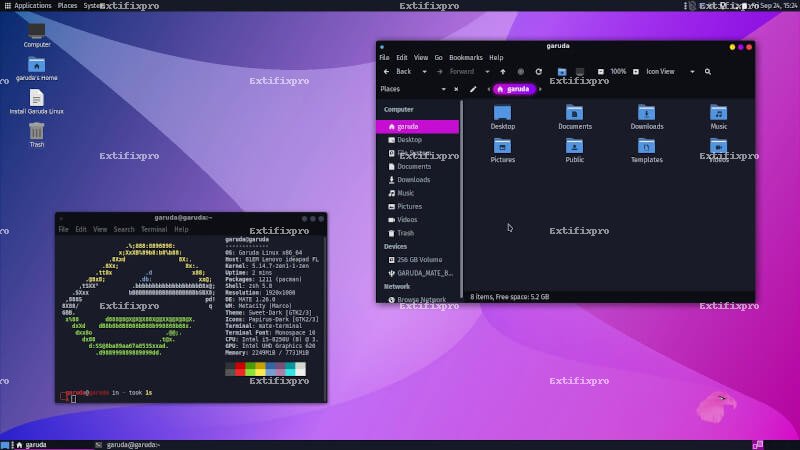
To install software on your Linux distribution, you can use the following commands depending on your package manager:
sudo apt install package-name: For Ubuntu users to install software from APT repositories.sudo dnf install package-name: For Fedora users to install software using DNF.sudo pacman -S package-name: For Arch Linux users to install packages with Pacman.sudo zypper install package-name: For openSUSE users to install software using Zypper.
You can also search for packages before installation using commands like apt search package-name, dnf search package-name, or pacman -Ss package-name . This helps you find available software quickly without browsing through repositories manually.
Customizing Your Linux Experience
The Desktop Environment
The choice of desktop environment significantly affects user experience on Linux systems. Each desktop environment offers its unique interface and set of features tailored to different user preferences. Popular choices include:
- GNOME: Known for its modern design and simplicity. GNOME provides a clean interface with an emphasis on productivity through extensions and customization options.
- KDE Plasma: Highly customizable and feature-rich environment that allows users to tweak almost every aspect according to their preferences. It is known for its aesthetic appeal with animations and transparency effects.
- Xfce: Lightweight and fast desktop environment suitable for older hardware. It balances performance with usability while providing essential features without unnecessary bloat.
- Cinnamon:: Developed by the Linux Mint team, Cinnamon offers a traditional desktop layout with modern features designed for easy navigation and usability.
- MATE:: A continuation of GNOME 2 that focuses on maintaining a traditional desktop experience while providing modern performance improvements.
- LXQt:: A lightweight desktop environment that combines elements from LXDE and Razor-qt aimed at providing a simple yet functional interface without consuming excessive resources.
Terminal Customization
The terminal is not just a command-line interface but also a canvas for personal expression through customization. Users can enhance their terminal experience by changing themes, fonts, colors, and even adding functionality through tools like Oh My Zsh!. Here are some customization options:
- Themes:: Use tools like Powerlevel10k, which provides visually appealing themes with contextual information about your system state right in your prompt.
- Fonts:: Consider using monospaced fonts optimized for programming such as Fira Code, which supports ligatures for improved readability.
- Scripting tools:: Customize your terminal sessions further by creating scripts that automate tasks or provide shortcuts for frequently used commands.
- Bashrc Customization:: Edit your
.bashrc(or equivalent) file to add aliases or functions that streamline your workflow and improve efficiency in executing commands. - Status Bar Enhancements:: Use tools like i3blocks , which display system information like CPU usage or network status directly in your terminal window.
Linux Security Practices
Understanding Linux Security
The open-source nature of Linux contributes to its reputation as a secure operating system. However, security should always be a priority. Key practices include:
- Regular system updates:: Keeping your system updated ensures you have the latest security patches and improvements. Use commands like
sudo apt update && sudo apt upgrade(for Ubuntu) orsudo dnf upgrade(for Fedora). - User permissions management:: Implement strict user permissions using tools like
sudores, which allows you to specify who can execute commands as root or other users safely while maintaining a secure environment. - Password policies:: Enforce strong password policies through tools like John the Ripper , which can help audit password strength across your system by identifying weak passwords.
- Auditing tools:: Use auditing tools like Auditd , which logs system calls made by processes for better tracking of changes made in your environment over time.
- Breach detection systems (IDS): Create rules with tools like Snort or OSSEC to monitor unusual behavior or potential attacks against your server environment automatically.
Backup Solutions
A comprehensive backup strategy is vital for data protection. Common methods include:
rsync :: A powerful tool that synchronizes files between different locations efficiently while minimizing bandwidth usage by copying only changed portions of files during subsequent backups. Use it with flags like-avz(archive mode with verbose output) for effective file transfers.- A cloud storage solutions :: Utilize services such as Google Drive or Dropbox alongside dedicated Linux clients (like rclone) that allow synchronization directly from your command line without requiring GUI access.
- Create disk images :: Use
xfsdump,btrfs send, or traditional disk imaging tools like dd , which allows for complete snapshots of disks or partitions effectively.
Advanced Linux Topics
Networking in Linux
The networking capabilities of Linux are extensive, making it an ideal choice for servers and advanced users alike. Key tools include:
Ifconfig: Displays network interface configuration details such as IP addresses assigned to network interfaces while allowing modifications via command line quickly.Ping: Checks connectivity to another network host by sending ICMP echo requests while helping diagnose connectivity issues across networks.MTR (My Traceroute): Combines functionalities from both ping and traceroute commands providing real-time analysis regarding packet loss along each hop toward the destination host.Nmap: A powerful network scanning tool useful for security auditing by discovering hosts within networks along with their services running on specified ports.
Scripting and Automation
Bash scripting allows users to automate repetitive tasks effectively within their environment leading increased productivity levels over time while minimizing human errors associated manual operations.
Basic script structure includes:
- The shebang line :: Specifies which interpreter should be used when executing scripts (e.g.,
#!/bin/bash) placed at the beginning of every script file. - Your commands :: Lines containing valid shell commands that need execution sequentially or conditionally based on user-defined logic structures.
- Error handling :: Utilize constructs such as try-catch or exit codes after executing critical operations ensuring reliable error reporting while preventing unexpected failures during automated runs.
Key Takeaways
- You should understand that :
- The versatility of Linux makes it suitable across various sectors ranging from personal desktops through large-scale enterprise solutions effectively meeting diverse needs globally.
- A strong grasp over command line usage empowers you significantly when handling tasks improving efficiency while minimizing dependencies on graphical interfaces altogether!
- Selecting an appropriate distribution tailored specifically towards individual preferences enhances overall experience leading smoother workflows along productive outcomes consistently!
FAQs
<h3 h3="" is="" linux?
The open-source operating system widely used across numerous applications ranging from personal computers through servers enabling users access powerful customizability options without restrictions imposed by proprietary alternatives!
<h3 do="" h3="" how="" i="" install="" linux?
The installation process typically involves downloading an ISO file corresponding chosen distribution followed by creating bootable USB drive utilizing utilities such as Rufus prior proceeding according official installation instructions provided within respective documentation pages!
<h3 applications="" can="" h3="" i="" linux?
You can indeed run Windows applications leveraging compatibility layers such as Wine , allowing execution natively alongside virtualized environments offered through software like VirtualBox ensuring seamless transitions between different operating systems during daily usage patterns!
<h3 free="" h3="" is="" linux="" to="" use?
The majority of distributions available today remain entirely free-to-download-and-use however commercial alternatives exist which charge fees primarily focusing support services while offering additional features catered towards enterprise customers specifically looking higher levels assistance throughout their journey!
<h3 advantages="" are="" h3="" linux?
The advantages associated utilizing this exceptional platform encompass enhanced security protocols inherent within architecture alongside extensive customization possibilities vast repositories containing thousands applications readily accessible ensuring all needs catered promptly!
<h3 about="" can="" h3="" how="" i="" learn="" linux?
A wealth resources exist dedicated learning enhancing overall proficiency levels including online courses detailed tutorials active community forums books tailored beginners experienced alike! Websites like Linux Journey , provide structured learning paths guiding individuals through various stages effectively!
<h2
The power behind using an adaptable operating system such as Linux unlocks endless possibilities fostering innovation creativity regardless user level expertise! As you embark upon this journey mastering new skills can significantly enhance overall computing experiences transforming how interact technology day-to-day! Embrace challenges faced along way knowing countless resources communities available empower successful transitions into exciting realms offered within this remarkable ecosystem!